The most important part of your Humana plan is a secure online account called MyHumana, where you can keep track of your claims and benefits, find providers, and view important plan documents and more.
Reminder: Keep your User ID and password on hand for future reference. You will need this information to access information in the secured sites of humana.com.
How to Activate MyHumana Account
To access MyHumana, a member must activate their MyHumana Account and view their profile. Once the profile is created, members can log on to MyHumana with their username and password.
Get the most out of MyHumana by keeping your account profile up to date. Whether you prefer using a desktop, laptop, or smartphone, you can access your account anytime. Getting started is easy—just have your Humana member ID card ready and follow these steps:
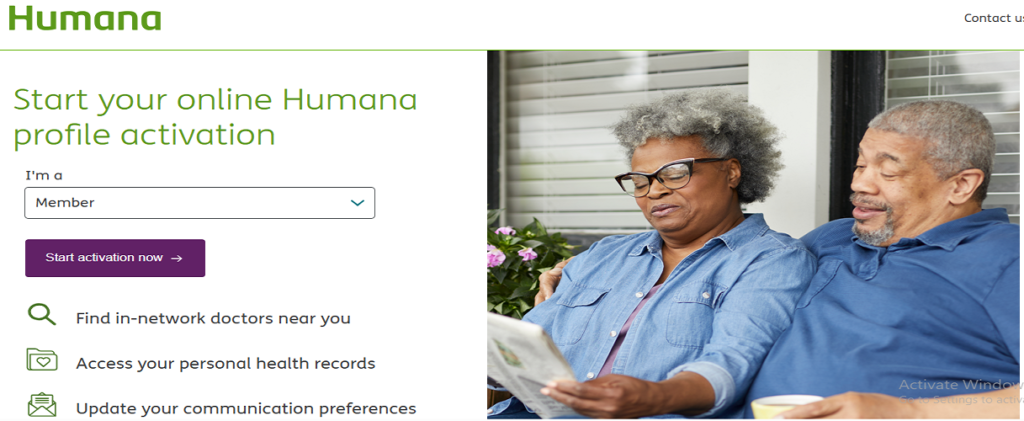
- Visit the MyHumana login page or copy the registration link account.humana.com/registration
- Click Sign In
- Click Activate online profile
- Select Member in the dropdown and click Start Activation now
- Enter your member information and click Continue
- On the next page, you will create a username and password within the criteria listed
Register via the MyHumana Mobile App
If you have an iPhone or Android, download the MyHumana mobile app. You’ll have your plan details with you at all times. With MyHumana and the MyHumana mobile app, you can:
- Review your plan benefits and claims
- Find pharmacies in your network
- Find providers in your network
- Pay your Plan Premium
- Lookup and compare medication prices
- View or update your medication list
- View or print your Humana member ID card
You can download the MyHumana app via your app store. Click on the link for Register for MyHumana. This will bring you to the pages as listed above.
MyHumana 2-Factor Authentication
The 2-factor authentication process is an additional layer of security to help protect your personal information and privacy when signing in to MyHumana and accessing your accounts
When you set up 2-factor authentication, you’re adding an extra layer of security to your MyHumana account. This helps us verify that it’s you when you sign in on a new device, such as a mobile device or a public computer.
This extra step helps make sure that only you can access your account. Each time you sign in from a device we don’t recognize, we’ll send you a confirmation code to enter during sign-in, along with your username and password. This is how we verify you are really you.
New to Go365? Follow these steps to activate your Go365 Profile!
From the MyHumana website, select Sign In and then “Activate Online Profile.”
Step 1: Member Information: Enter your Member ID or Social Security Number, Date of Birth (please use XX/XX/XXX format), and zip code associated with your policy. Select Continue.
Step 2: Profile Set Up: Enter and confirm your email address, create a username, and a password for your account.
Step 3: Activation Complete: You will see your username and email address associated with your profile! Select “Sign in now and get started” to continue.
Already have a Go365 Profile? Here is how to activate your 2-Factor Authentication!
- From the sign-in page, enter your username and password. Select “Sign in”
- Add 2-Factor Authentication: Choose your preferred method of authentication from Email or Text.
- Enter your email or phone number.
- A code will be sent to your preferred method. Enter the code received and select “Submit code.”
- Once your email or phone number has been verified, you will see a confirmation screen.
There is also the option to add additional security by verifying an additional method of authentication.
After you enter the information, a code will be sent to verify the secondary authentication method. Enter the code and “Submit code.”
Once this has been verified, you will see both options as verified. Choose which method you prefer, check the “Remember this device box, and “Continue” to sign in.
How 2-Factor Authentication works when logging in!
After signing in with your Username and Password, a code will automatically be sent to your authentication method of choice. Enter the code, re-enter your password, and check “Remember this device” to access your account.